How to Make Screen Recordings Look Professional: 7 Practical Tips
A screen recording looks amateur when the viewer cannot tell what you clicked. The window is too wide, the pointer is a speck, and the mouse tours the desktop before it reaches the button that mattered. Polish is not a filter you add at the end. It is a set of decisions you make before you hit record, and a short edit after you stop.
These seven tips are for anyone making a product video: a founder, a marketer, a developer, or a support lead. Each one has a before and an after. The before is the raw take most people publish. The after is the same action, framed so a stranger can follow it.
1. Make the cursor impossible to miss
Before: the pointer is the operating system's default arrow, small and thin, racing across a bright interface. On a laptop it is hard to see. On a phone, where a lot of product videos get watched, it disappears. The viewer knows something was clicked because the screen changed, not because they saw the click.
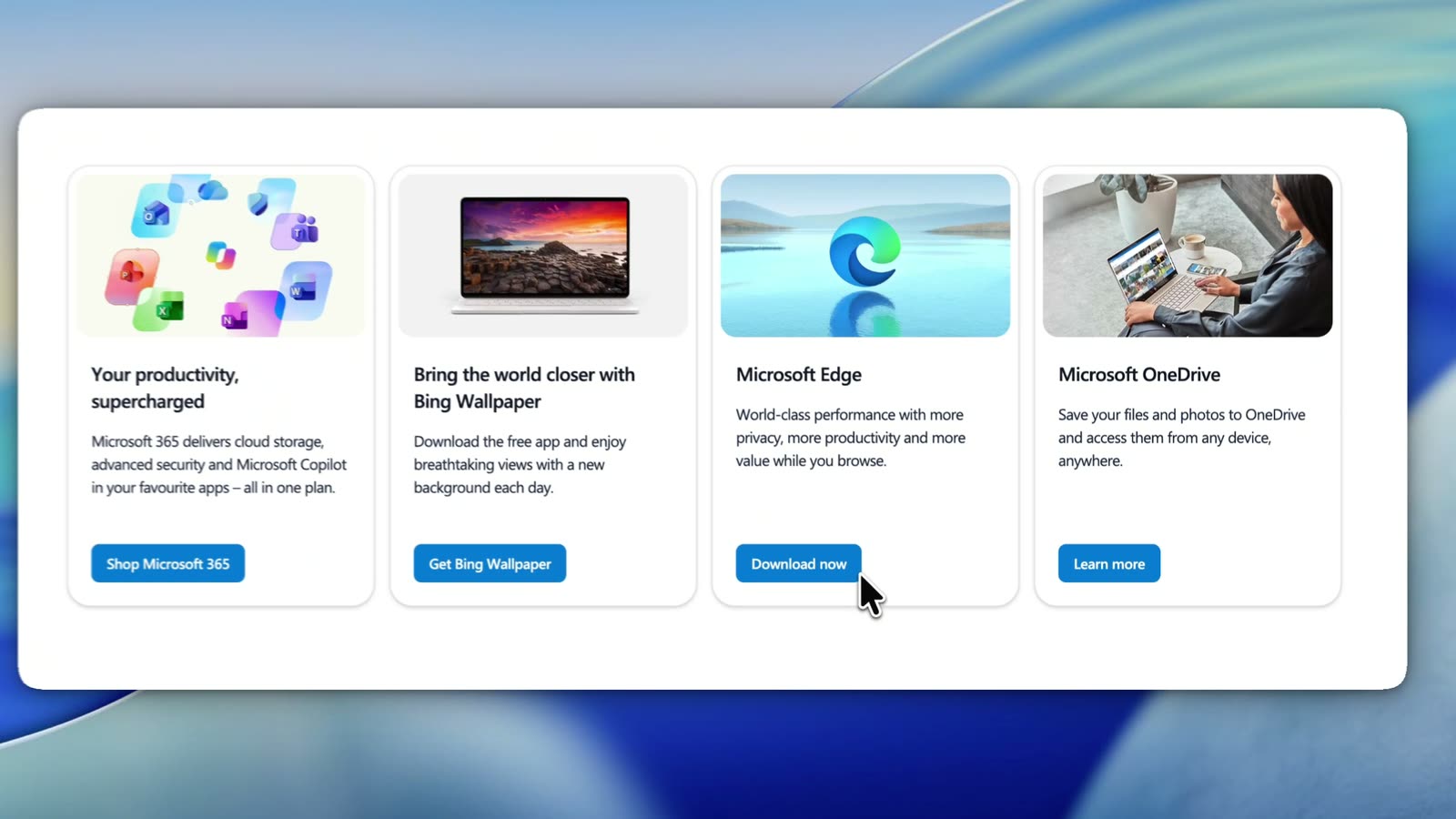
After: the pointer is large, it rests on the control, and it does not jitter while you talk. In this DoDemo frame, the cursor sits on Download now. The button label is readable. You do not have to guess which of the four cards was the point of the shot.
Do this on purpose. Move to the control, stop, then click. If your hand shakes, do not publish the shake. DoDemo can smooth the raw mouse track so the pointer glides, and it can show the click without painting a noisy trail across the UI. You can turn that motion up or down. A support video can be calmer than a launch video. Both should leave the pointer where the eye is supposed to go.
Watch the recording once and only follow the cursor. If you lose it, your viewer will lose it too.
2. Record the window, not the whole display
Before: you capture the entire monitor because that is the default. The product sits in the middle third. Menu bars, a second monitor's edge, and a stack of unrelated windows fill the rest. The button you care about is a dozen pixels tall.
After: the window you are teaching fills the frame. Text in the product is large enough to read without squinting. If the interface is a spreadsheet, you do not also record your email. If the interface is a pricing page, you do not also record the dock.
Resolution is not "the highest number in the settings." A 4K capture of a full desktop makes every control smaller, not clearer. What matters is how many pixels the important control gets. Resize the window before you record. Crop in the editor if a menu bar or a stray panel still intrudes. DoDemo's editor has a Crop Video control for that, and padding controls so the window can sit in a frame instead of bleeding to the edges.
If you will publish a vertical cut for social and a wide cut for the landing page, record the window large enough that both crops still show the label. Do not plan to scale a tiny button up later. Scaling a tiny button makes it blurry.
3. Prepare the screen before you arm the recorder
Before: you start recording and then remember the sample data is a customer's real invoice. Notifications are on. Twelve tabs are open. The first twenty seconds are you closing things while the microphone is live.
After: the desktop is boring on purpose. One project, one window, sample data you can say out loud. Notifications are off. The step you will perform has been done once already, without the recorder, so you know the click lands.
Preparation is the cheapest polish there is. A clean screen reads as competence. A messy screen reads as a meeting you forgot was being recorded. Quit chat. Hide bookmarks that are not part of the task. Use a short, fake name. If a password manager wants to pop over the button, dismiss it before the take, not during it.
DoDemo can hide its own recorder controls and run a countdown before the capture starts, so the tool you are using to record does not appear inside the product you are showing. That is part of preparation too. The viewer should see the product, not the production.
4. Cut the movement that is not the task
Before: the pointer circles while you think. You scroll to the top, scroll back, hover three menus, and then do the one click the video was for. The viewer feels the hesitation. They also learn the wrong path, because you demonstrated it.
After: the pointer travels from a resting place to the control, clicks, and waits for the result. Thinking happens off camera. If you need a menu, you open that menu. You do not audition the menus next to it.
Unnecessary movement is not a style. It is uncut rehearsal. Stop the recording when you are lost. Start again from the last good step. A four-minute video with no wandering beats a twelve-minute video that contains the answer somewhere in the middle. People do not scrub a product video to find the click. They leave.
When you watch the take, mark every second where the screen does not change and you are not saying something necessary. Those seconds are the ones to remove.
5. Zoom into the area that matters, then zoom back out
Before: the whole spreadsheet stays in frame while you edit one cell. The number 5000 is technically on screen. Nobody can read it. The click and the result look the same: a small flash in a grid.
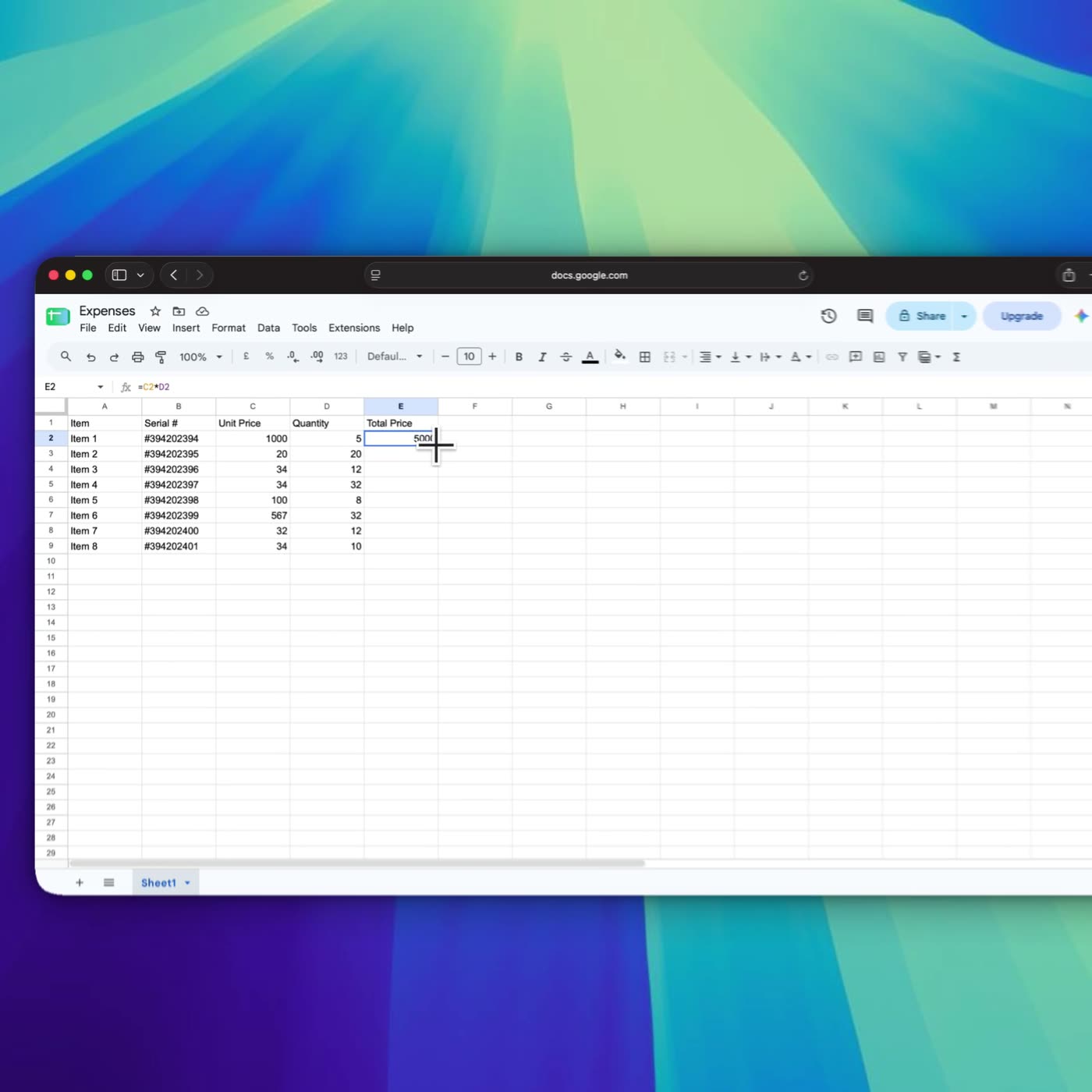
After: the view moves in until that cell, the quantity, and the total are the shot. This frame is from a DoDemo recording. The cursor is on the Total Price cell. 5000 is large enough to read. The rest of the sheet is still there as context, but it is not competing at the same size.
Zoom is how you tell the viewer "look here" without saying it twice. Zoom out again when they need to see where that control lives, or they will not find it on their own machine. A zoom that never returns leaves people inside a detail with no map.
DoDemo watches the cursor and the clicks and builds those zoom regions for you. When the pointer drifts toward the edge, the view recenters. You can keep the automatic zooms, retime them on the timeline, or draw your own. Presets run from 1.25× to 5×. In the spreadsheet project, the automatic regions on the timeline are 1.5×. That is enough to make a cell readable without turning the recording into a blur of extreme close-ups. Use a stronger zoom only when the label is still too small.
6. Narrate the next click, not your thoughts about the product
Before: the voiceover is a tour. "So yeah, this is kind of the main area, and you can do a lot of stuff here." The screen is three steps ahead of the sentence, or three steps behind it. The viewer picks one and ignores the other.
After: one sentence, one action, one result. "I'll change the quantity to 5. The total becomes 5000." Then you stop talking until the next action. You use the product's own words. If the button says Download now, you say Download now. You do not rename it in the voiceover.
Narration is also how the video works with the sound off, if you add captions. DoDemo can generate captions in the editor and lets you adjust the font, the number of rows, and the caption box. A landing-page video is often watched muted. The caption and the zoom have to carry the step. Record the narration as if the captions will be the only audio someone reads.
Do not apologize on mic. "Sorry, wrong menu" is a trim, not a line. Stop, trim, and say the line once, cleanly.
7. Trim the mistakes instead of explaining them
Before: you leave the false start in and talk over it. "Ignore that, I clicked the wrong row." The viewer cannot ignore a moving picture. They watch the wrong row. Then they are unsure which click was the real one.
After: the wrong click is gone. The timeline shows the action you meant. Dead air, the moment you looked for a menu, and the second take of a sentence are trimmed. What remains is the path you would want a customer to copy.
Trimming is not about hiding how the product works. It is about refusing to teach the paths that do not work. DoDemo's editor has trim on the timeline, and a Speed control when a stretch of correct-but-slow motion should play faster without you re-recording it. Speed is for the part that is right. Trim is for the part that should not be in the file at all. Use trim first.
Watch the export once at full speed before you send it anywhere. If you would rewind, the trim is not finished.
What this looks like in DoDemo
The frame below is the same spreadsheet, in the editor rather than as a naked capture. The window sits on a background. Two automatic 1.5× zoom regions are on the timeline. Crop, background, shadow, radius, and padding are the controls beside the preview. The recording stayed on the machine. Nothing was uploaded in order to edit it.
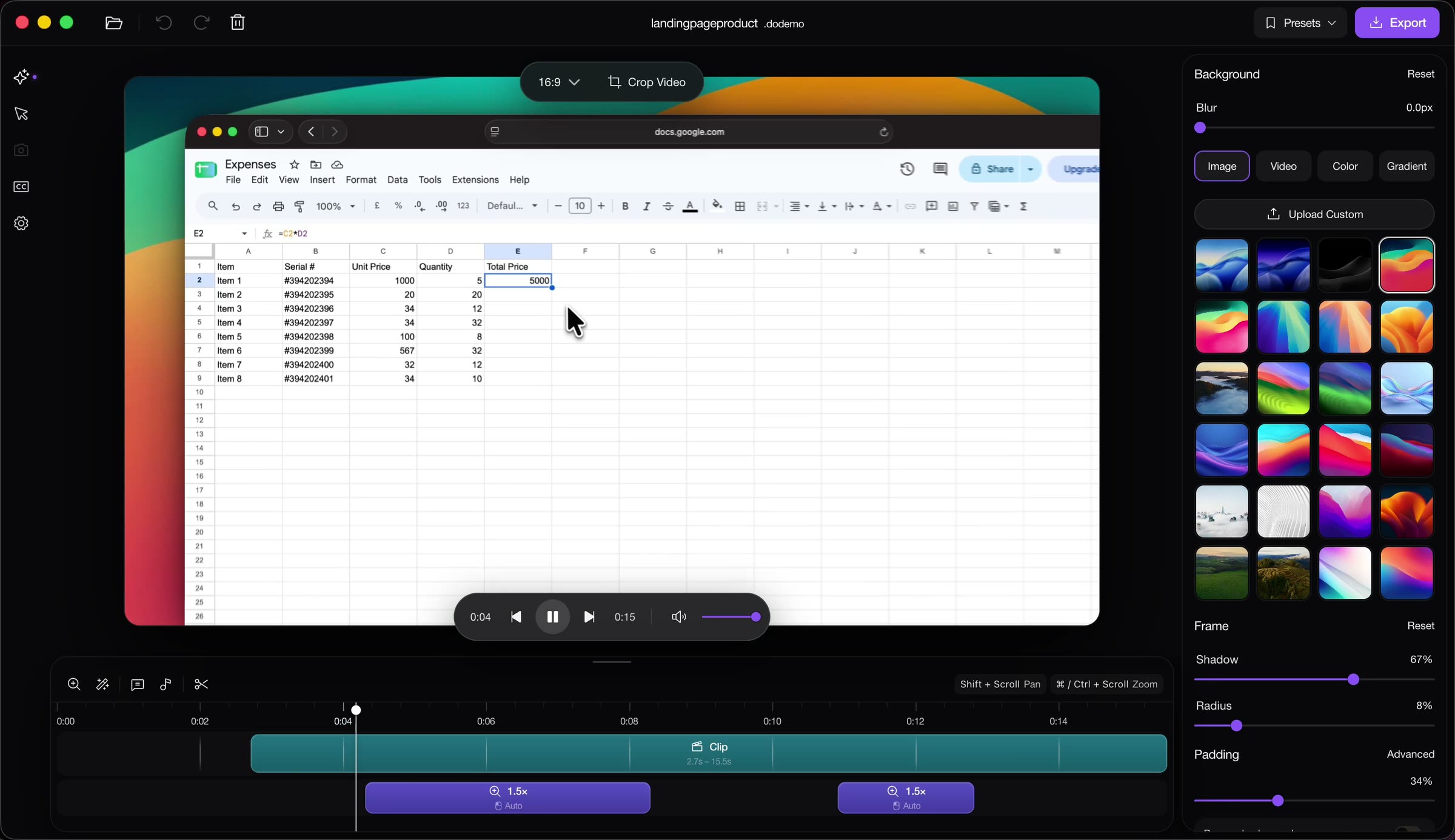
That is the practical difference. The raw file is you working. The polished file is the work, with the cursor visible, the frame tight, the extra movement gone, and the zoom parked on the number that mattered. Download DoDemo for Mac or Windows if you want the recorder and that editor together. Plans are on the pricing page.
You do not need all seven tips at full strength for every video. A bug report to a teammate can skip the background and the caption pass. A video on your homepage cannot. Start with the cursor, the crop, and the zoom. Those three change how professional the recording looks more than any intro animation will.