
How to Record Software Tutorials That People Actually Want to Watch
A software tutorial fails when the viewer has to guess what you just did. Developers, educators, and technical writers hit the same wall. The feature is real, the explanation is careful, and the recording still feels like a screen share that wandered. People close the tab. A louder intro does not fix that. A tighter plan does. So does a recording that shows one action at a time, and an edit that keeps the important part of the interface in frame.
This is a practical guide for anyone who teaches software. You might be documenting a library for other developers, recording a lesson, or writing a help article that needs a video beside the steps. The aim is a tutorial someone can follow without rewinding every few seconds.
Decide the outcome before you record
Write one sentence a viewer could repeat after the video ends. "Add a webhook and confirm the test event arrived." "Find why the build fails on a missing environment variable, then fix it." If you cannot say it in one sentence, you are about to record two videos. Split them.
That sentence decides what stays in the take. A tour of the whole product, a history of the feature, and a list of future plans do not belong in the same file as the steps. Put the context in the first half minute, then do the task. Viewers who already know the context can move on. Viewers who do not will not sit through a preamble that never reaches the click they came for.
Name the audience in that sentence, even if you never say it out loud. A tutorial for someone with the repo open looks different from a tutorial for someone seeing the product for the first time. Developers usually want the exact control, the command, and the result. Educators need a pace that leaves room to pause a class. Technical writers need a recording that matches the article: the same names for the same buttons, in the same order as the steps on the page.
If the outcome sentence mentions two jobs, pick one. "Install the CLI and deploy the sample" is two recordings unless the install is three clicks and nothing can go wrong. A viewer who only needed the deploy still has to watch the install. A viewer who got stuck on the install never reaches the deploy. Separate files are easier to title, easier to link from a doc, and easier to replace when one of the two steps changes.
Outline the steps you will actually perform
Open a note and list the clicks before you arm the recorder. Four to eight steps is enough for one feature. Each step is a verb and an object. "Open Settings. Choose API keys. Create a key. Copy it into the example. Send a request. Show the 200 response." If a step needs a paragraph of explanation, it is probably two steps, or it belongs in the written doc instead of the video.
Read the list once as if you had never seen the product. Anywhere you wrote "just" or "simply," replace it with the real action. "Just hook it up" is how recordings become confusing. The viewer does not know which menu you meant.
For a troubleshooting guide, the outline has a second half. First you show the broken state: the error text, the command, the screen the reader already has. Then you show the change. Then you show the same command succeeding. Do not start from a working machine and only describe the failure. People came because their machine is the broken one.
Keep sample data boring and readable. Use a short project name, a fake user you can say out loud, and an error you can reproduce on purpose. A live customer record, a private key, or a notification from another app will distract everyone, and it may leak something you did not mean to publish. Hide or quit anything that can pop a banner in the middle of a step. A calendar alert during a click teaches nothing and dates the recording.
Number the steps in the note, and use those numbers in the video if the procedure is longer than three actions. "Step three is the one that fails if the key is missing" gives a viewer a way back in after they pause. It also gives a technical writer a heading to match. You are building a map, not a mood.
Keep the recording focused
Close what you are not teaching. Extra browser tabs, chat badges, and a desktop full of drafts all compete with the control you need the viewer to see. If the tutorial is about one panel, do not start from a full desktop and hope the viewer finds it. Resize the window so the panel fills the frame, or crop to it when you edit.
One feature, one take, whenever you can. A forty-minute recording of everything a settings page can do is hard to finish and harder to update when one checkbox moves. A four-minute recording of one job can be linked from a doc, replaced when the UI changes, and watched between meetings. If you need the longer story, publish the short pieces and put a sentence at the top of each one that says what the viewer will be able to do.
Say the name of the thing you are about to use, then use it. "I'll open the command palette and run the test task." Then do that, and pause long enough for the result to appear. Silence while you hunt through menus is the moment people lose the thread. If you need to think, stop the recording. The viewer does not need to watch you decide.
Move the pointer on purpose. A cursor that darts, circles, and rests on the wrong button teaches the wrong step. Land on the control, leave it there for a beat, then click. If the click does not change the screen, say what you expected and what you will try next. An unexplained click is how a tutorial becomes a puzzle.
Watch the corners of the frame. Menus that open upward, tooltips that cover the label, and a dock that hides the status line are all reasons a careful click still confuses people. If the result appears somewhere else on the screen, move there on purpose and say where you are going. "The confirmation shows in the bottom left" is a complete instruction. A silent glance is not.
Show the action and the result
Every important step has two frames. The action is the click, the command, or the keystroke. The proof is the panel that opened, the line in the terminal, or the row that appeared in the table. If you jump from the click straight to a later screen, the viewer has to invent the middle. They will invent it wrong.
Zoom toward the control when the interface is dense. A full display can make a button too small to read. The viewer should be able to read the label without squinting. Zoom back out when you need them to see where that control sits on the page, so they can find it on their own machine. A zoom that never returns to the wider view leaves people lost the moment they try the step themselves.
Keep your words and the screen on the same step. Narrating step four while the screen still shows step two forces people to choose which one to trust. Finish the sentence, then click, or click and then name what just happened. Do not start a third idea in between.
Use the same words the product uses. If the button says Deploy, do not call it "ship" in the voiceover and "publish" in the article. Developers searching the UI will look for the word they heard. Educators repeating the lesson will spread whichever word you chose. Technical writers can paste that same word into the heading of the doc.
When a step can fail, show the failure you expect people to hit, not every failure you can imagine. Read the error. Point at the line that matters. Then show the one change that addresses it. A gallery of unrelated errors feels thorough and teaches nothing, because the viewer cannot tell which one is theirs.
A workflow you can repeat
Treat every feature walkthrough as the same short production, not as a performance you have to invent again.
- Write the outcome sentence and the step list.
- Prepare a clean window: the right sample project, the panels you need, and nothing else.
- Do the steps once without recording. Throw away anything that only works if you already know a shortcut.
- Record the path. Narrate the next action, perform it, and wait for the result.
- Watch it once at full speed. Note every place you would rewind if you were the viewer.
- Tighten those places. Zoom in on the control, record a step again if you spent it hunting for a menu, and make the cursor easy to follow.
- Export, watch the file you will actually publish, and put it next to the written steps.
That pass is the whole job. The first recording is allowed to be a little slow. The published one should not contain the search for the menu. If you discover a better order while you record, stop and update the outline. Do not leave a correction in the middle of a step and hope the edit will explain it.
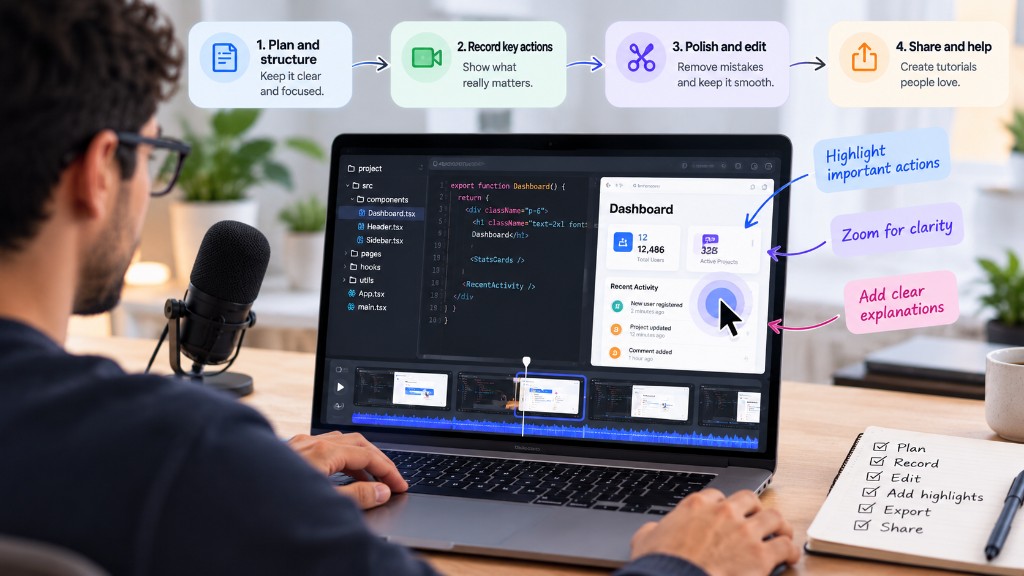
The picture at the top of this article is that loop in one frame. Plan the structure. Record the key actions. Polish the edit. Then share something a person can follow. Highlight the action, zoom so the control is readable, and add a sentence that says what the click did. The checklist beside the laptop is the same list you can keep next to the recorder: plan, record, edit, add the highlights, export, and share.
Run this workflow even when you are in a hurry. Skipping the unrecorded rehearsal is how a private shortcut ends up in a public lesson. Skipping the full-speed watch is how a dead end stays in the file. The steps are short on purpose. They are the difference between a recording of you working and a recording of the work.
When the video is a troubleshooting guide
A troubleshooting tutorial has one extra promise. The viewer should recognize their own failure before you fix it. Start on the error. Read the important line out loud. Show the command or the screen that produced it. If there are three common causes, record three short videos, or three clearly separated parts in the same outline. Do not blend them into one take where the fix for a missing key is followed, without a pause, by the fix for a wrong port.
Change one thing at a time. Apply the fix, then run the same check you used to show the failure. Say what changed in the output. If the fix can fail partway, show that, and show the next check. People trust a troubleshooting guide that includes the verification, because that is the moment they learn whether their machine matches yours.
Avoid the cleaned-up machine that never had the bug. Record the broken state on purpose, even if you have to recreate it. A tutorial that only shows the happy path after the fix answers a question the viewer is not asking yet. Recreate the bug with the same command the docs tell people to run. If your machine has extra tools installed, say so, or remove them from the path for the take. Hidden local state is the usual reason a careful viewer still cannot reproduce your result.
End the troubleshooting video on the check, not on a tour of what else the tool can do. The viewer who just escaped an error wants to know the error is gone. Offer the next lesson as a link, not as another five minutes they did not ask for.
How a screen recorder makes this easier
You can record a tutorial with any tool that captures a screen. The slow part is everything after the click: finding the control again in a wide frame, keeping the pointer readable, and shaping a take that wandered. DoDemo is a screen recorder and editor for Mac and Windows built for that kind of video. You record the screen, your microphone, and a webcam if you want your face in the frame. The file stays on your computer. There is no upload step before you edit.
A countdown runs before the take starts, and the recorder's own controls can hide so they never appear in the lesson. That matters when you are teaching a product and do not want a second toolbar in the shot.
After you stop, you are in the editor. DoDemo watches the cursor and the clicks, then builds zoom regions that keep the important part of the interface in frame. When the pointer moves toward the edge, the view recenters so the action stays visible. You can accept those zooms, retime them on the timeline, or switch to manual and draw your own, from 1.25× up to 5×. Raw mouse movement can be smoothed so the pointer glides instead of jittering, and the zooms ease in and out. Clicks can read clearly without a noisy trail across the UI. You can turn that motion up or down, so a classroom lesson and a fast developer demo do not have to feel the same.
Captions can be generated in the editor, then adjusted for font, rows, and the caption box. That helps viewers who watch without sound, and it helps anyone who missed the name of a button. A webcam bubble can sit over the screen if you want to talk through the lesson as yourself. Pick the camera and microphone you want, then mirror, crop, and size the bubble. System audio can be captured with your voice, which is useful when the software you are teaching makes a sound the viewer needs to notice. The webcam layout stays readable when the picture zooms. Backgrounds and padding can put the window in a clean frame, and you can crop the take so a stray menu bar is gone.
When the lesson looks right, export MP4 or GIF. MP4 is the file you embed in a doc or a course. A short GIF is enough when a single step needs to sit inline in a written guide. Download DoDemo for macOS or Windows if you want the recorder and the editor in one app. Plans are on the pricing page.
Publish something you could follow with the sound off
Watch the export once with the sound off. If you can still tell what to click, the zooms and the order are doing their job. Listen to it once as well. If the narration alone is a complete procedure, you have not left a step trapped inside a gesture. Both checks fail more often than people expect, and both are cheaper than a comment that asks which menu you meant.
Then match the video to the page. The article's headings should be the video's steps, in the same order, with the same names. A tutorial people finish is usually a tutorial they can also skim. The recording exists so the action is unmistakable, not so the viewer has to live inside the timeline to learn the task.
Keep the outline. The next time the UI moves, you already know which step to record again. You do not start from a blank page, and you do not drop a new click into the middle of an old explanation and hope the words still fit. That is the practice. One outcome. A short list of actions. A clean frame. A visible result. An edit that points at the control instead of making the viewer hunt for it.