Auto-Zoom Screen Recording: How to Add Smooth Zoom Effects Without Editing
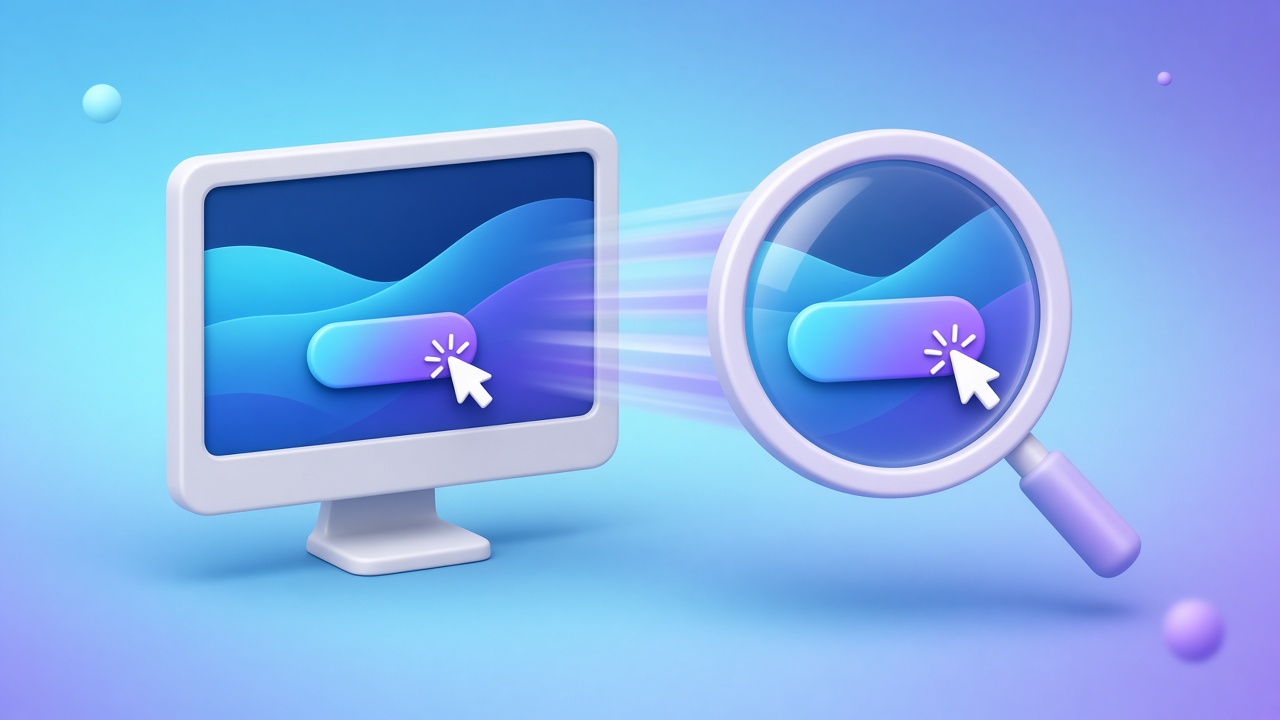
A smooth zoom is how a product demo makes a small control readable. Placing every keyframe by hand is how a ten-minute recording becomes an afternoon. Auto zoom does the first pass from what you already did with the mouse.
In DoDemo, that pass happens after you stop recording. The app watches the cursor and the clicks and builds zoom regions. You are still in an editor. You accept the pass, retime it, or draw your own. "Without editing" means you do not start from an empty timeline. It does not mean you never look at the result.
Record so the automatic pass has something to follow
Zoom follows attention. If your pointer wanders, the zoom wanders with it.
- Capture a window or an area, so the shot is already the product.
- Move to the control and click it. Do not circle it.
- Pause on the result for a beat, so the zoom has a place to land.
- Hide the recorder. The demo is of your product.
Do this on Mac or Windows. The project stays on the machine until you export.
Keep, retime, or replace
Watch the automatic zooms once, at the speed the viewer will see.
Keep a zoom that lands on the click you meant. Retime it on the timeline if it starts before the cursor arrives or hangs after you have moved on. If the pass missed the control, switch to manual and draw one. Presets run from 1.25× to 5×. Use a stronger zoom when the target is a small control, and a milder one when the viewer still needs to see the page around it.
Delete zooms on clicks that were only navigation. A demo with a zoom on every hover feels nervous. One zoom on the result feels directed.
Smooth the cursor in the same project. Raw mouse tracks jitter. The smoothed pointer glides, which is what makes the zoom feel like a camera instead of a shake.
What still needs a human
Auto zoom does not know which click is the point of the video. You do. If you clicked a menu, a filter, and then the number that matters, keep the zoom on the number.
It also will not write your sentence. Say the cause and the result while you record, or add captions after. The zoom shows where. The words say why.
Background and padding are separate from the zoom. Add them when the video will sit on a marketing page, so the frame is not a raw desktop. They are in the same editor, after the zooms are right.
Export
Export MP4 when the video is the demo. Export GIF when one zoomed step should loop beside a sentence. Free exports include a DoDemo watermark. Pro removes it.
Download DoDemo, record the click, and watch the automatic regions before you add anything else. If the control is readable, you are finished with the zoom. The rest of the production pass is in a SaaS demo in 30 minutes.